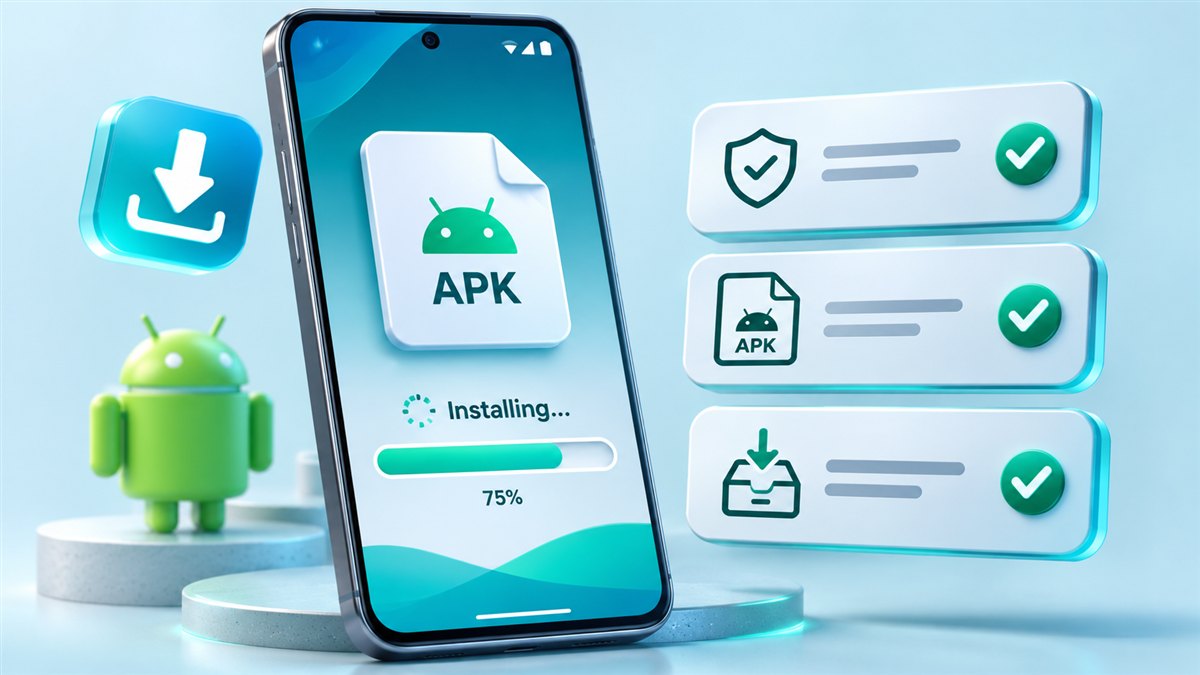
Installing Auto Clicker Mod APK takes a few minutes. Because the file is installed outside an app store, Android asks for a couple of extra confirmations. This guide walks through each one in order so the app works the first time you open it.
Before you start
- Use an Android phone or tablet. APK files do not install on iPhone, iPad, Windows or macOS.
- Make sure you have some free storage space for the download and installation.
- If an original version of the same auto clicker is already installed, you may need to uninstall it first. Modified builds are usually signed differently, and Android will not install one over the other.
Step 1: Download the APK file
Check the download section for availability. If the download button is shown, tap it to save the APK. When the download finishes, your browser normally shows a notification you can tap to open the file.
Step 2: Allow installs from your browser or file manager
On Android 8.0 and newer, permission to install apps is granted per app. The first time you open an APK, Android shows a prompt saying installs from this source are not allowed.
- Tap Settings in the prompt.
- Switch on Allow from this source for your browser or file manager.
- Go back to continue the installation.
You can find the same setting later under Settings > Apps > Special app access > Install unknown apps. Menu names vary slightly between manufacturers.
Step 3: Install the package
Tap Install on the confirmation screen and wait for it to finish. If Google Play Protect shows a warning about an app it does not recognise, read it carefully. You can choose to install anyway or cancel. If you see App not installed, jump to the troubleshooting guide.
Step 4: Enable the accessibility service
Open the app. It will ask you to turn on its accessibility service, which is what allows it to perform taps and swipes.
- Open Settings > Accessibility.
- Find the auto clicker under Installed apps or Downloaded apps.
- Switch it on and confirm.
Toggle greyed out? On Android 13 and newer, accessibility access for sideloaded apps can be blocked as a “restricted setting”. Open Settings > Apps > [the app], tap the three-dot menu and choose Allow restricted settings, then try again.
Step 5: Allow display over other apps
The floating control panel needs the Display over other apps permission. The app usually opens the right screen for you; switch the toggle on and return to the app.
Step 6: Run your first test
- Open the floating panel and add a single target.
- Set a comfortable interval, for example a second or more, while you learn.
- Press play, watch the tap happen, then press stop.
Once single-target mode works, try multi-target sequences. The beginner guide explains each mode.
Installation checklist
| Step | Where | Why it is needed |
|---|---|---|
| Allow installs from source | Install unknown apps | Android blocks APK installs from unknown sources by default |
| Install | Package installer | Adds the app to your device |
| Accessibility service | Settings > Accessibility | Lets the app perform taps and swipes |
| Display over other apps | Special app access | Shows the floating control panel |
After installing
When you are done, consider switching off Install unknown apps for your browser again. Keep the accessibility service on only while you use the auto clicker. For more tips, see the safety notes on the homepage.
Prepare your phone before installing
Begin by writing down what you already have installed. Record the application name, displayed version, and any profiles you want to keep. If your existing app offers an export option, save a copy of those settings somewhere you can find again. Otherwise, take screenshots of target layouts and interval values. This preparation is useful because replacing an app can reset preferences, and uninstalling it can remove its local data. Do not assume a modified package will import settings from a different release or a similarly named app.
Keep enough free storage for the downloaded package and the installed application. A file can finish downloading even when there is not enough space to complete installation. Close unnecessary floating tools so that they do not cover system dialogs. Choose a moment when you can finish setup without rushing. The goal is to read each request, understand which app is asking for access, and know how to return to the original settings if you decide not to continue.
Understand an installation error before retrying
If Android says the app was not installed, repeated taps on the same file rarely explain the cause. Check whether the download completed and whether the package is intended for your device. A newer or older release can have different compatibility requirements. An existing installation may also conflict with a package signed by another publisher. Treat the exact error wording as useful information. Avoid changing several security settings at once because doing so makes it harder to identify which condition caused the failure.
An update normally needs to be compatible with the application already installed. A modified file may not share the signing identity of the original app, even if both display the same name. Removing the existing app may discard saved data, so it should not be the first automatic response to a failed update. Preserve the information you need before considering a replacement. If the package cannot be identified confidently, stop the installation rather than trying unrelated workarounds until a system dialog disappears.
Verify setup with a small controlled test
After setup, open a harmless screen with a large button or counter. Add only one target and choose a slow interval that allows you to watch every action. Set a small loop count if the app provides that option. Start the sequence, observe a few taps, and stop it using the floating controls. Check that the target lands on the intended control and that the phone responds normally afterward. This verifies the basic setup more clearly than immediately loading a complex profile with many actions.
If the panel appears but no taps occur, distinguish between overlay visibility and gesture access. Seeing a floating button does not by itself prove that the accessibility service is active. Revisit only the relevant settings, then repeat the same short test. Once everything works, note the successful configuration and disable temporary installation permission for the browser or file manager when you no longer need it. Installation access and accessibility access serve different purposes and should be reviewed separately.
Conclusion
Installing Auto Clicker Mod APK is a sequence of checks: preserve existing settings, understand the package, review requested access, and verify one simple action. A successful installation message is only the beginning. The useful result is a short routine that taps correctly, stops when expected, and leaves you able to control the phone comfortably.
Related guides
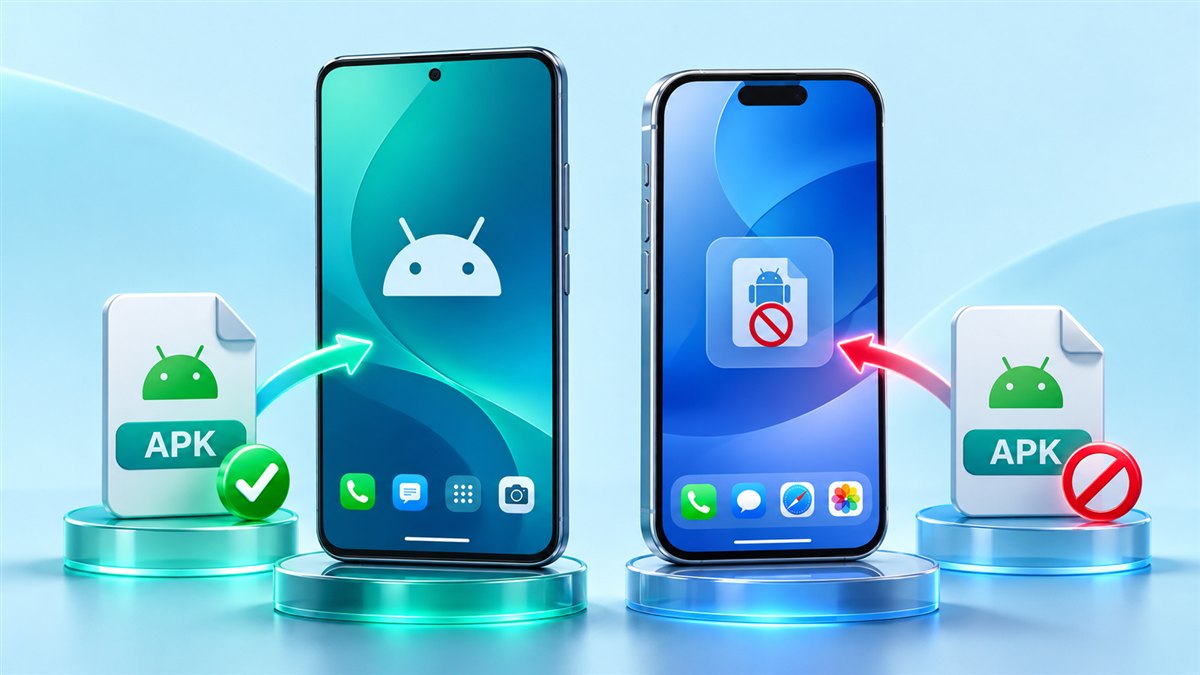
Auto Clicker MOD APK iOS: Can You Use It on iPhone?
Why an APK cannot be installed on iPhone or iPad, and which built-in iOS tools can repeat simple gestures.
Read guide
VV Auto Clicker MOD APK and GC Auto Clicker MOD APK Old Version: What to Know
Why people look for older auto clicker builds, the trade-offs involved and how to check what you have installed.
Read guide